
Tickets
Turn conversations into structured work — category, priority, assignee, state, and notes — so guest problems don't disappear into a chat thread.
TL;DR
- What it is — a support-ticket system tied to every chat. Each ticket carries a category and sub-category, a priority, an assignee, a status, and a remarks trail.
- Who it's for — front-desk agents logging maintenance requests, team leads escalating VIP issues, admins running the weekly unresolved list.
- Top outcome — turn "I'll remember to follow up on this" into a record that's assignable, filterable, and emailed to the right people on every state change.
At a glance
| Plan tier | All paid tiers. |
| Who can use it | Account Owners, Admins, and Users. |
| Channels | Any CRM channel a chat can live on: WhatsApp Official, WhatsApp Unofficial, Email, Web Chat. Category lists are configured per channel. |
| Integrations | Email notifications on create and status change. |
| Top limits | 100 tickets per page in the API. Bulk actions are all-or-nothing. |
| API | Yes — partner API for creating, listing, updating, and bulk-operating tickets. |
How to find it
Sidebar → Tickets.
Direct URL: https://lodgestory.com/crm/tickets
From a specific chat: open the chat in Home, scroll the guest-details panel to the Tickets section, and click Create ticket. The new ticket is attached to that chat.
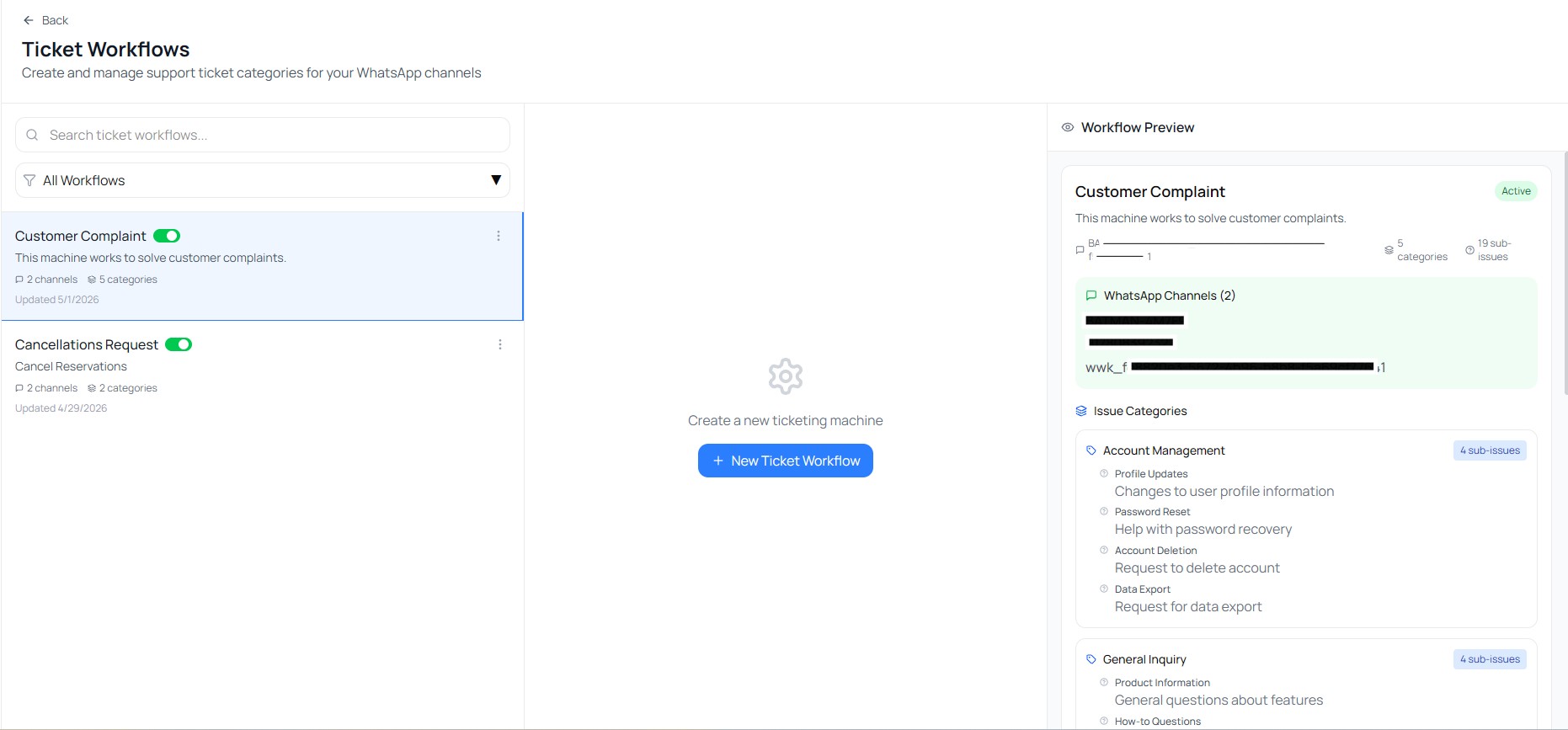
Configuration: categories and sub-categories are managed per channel under Settings → Ticket Workflows.
What is Tickets?
The problem it solves
Conversations are great for talking. They're terrible for work that outlives a single reply. A guest says "the AC isn't working" on Sunday at 10 PM. Without a ticket, that becomes: remembered by one agent, mentioned in a group chat, forgotten by morning, discovered by the next shift, chased by the guest, fixed eventually — with no record of who owned it, when it was reported, or how long the resolution took.
Tickets gives every actionable chat a parallel record with category, priority, assignee, status, and a notes trail. You can filter "all unresolved plumbing tickets assigned to my team from last week" in one click. The chat stays the chat; the ticket is the work.
What you get
- Category-driven triage. Each channel has its own ticket-workflow configuration with valid issues and sub-issues. You can't pollute the category list with free text — every ticket is drawn from the configured list.
- Linked to the conversation — or not. Most tickets attach to a chat: when you open a chat, its tickets are visible on the right panel and fully manageable there (open a ticket's View dialog to change status, priority, or remarks without leaving the conversation). Tickets can also be raised from a call (linked to the call, and to the caller's chat when one exists) or created standalone from the Tickets page — for walk-ins and issues that arrive outside any conversation.
- Bulk operations, atomic. Select many tickets; change status, priority, or assignee; or delete. All succeed, or all roll back — never a half-applied change.
- Full-text search. Search across ticket remarks and the linked guest's name / phone / issue category — or jump straight to a ticket by typing its number ("42" or "#42").
- Email on create and status change. When a ticket is created or moves to a new status, the relevant people get an email notification.
How it's different
- Bound to the chat, not an abstract "case". Many systems create a ticket as an island. When you resolve it, you lose the message context. Here the ticket sits beside the chat — resolving one never loses the conversation.
- Category taxonomies per channel, not per organisation. A hospitality channel can use Open → In progress → Waiting on vendor → Resolved; a technical support channel can use New → Triaged → Fixed → Verified. The ticket workflow lives on the channel, so different teams can run different flows.
- Two separate ticket surfaces. The main CRM ticket system is for your guest-facing work. Separately, Lodgestory has a platform-level support surface for raising issues to Lodgestory itself. The two are deliberately kept distinct.
Customer scenarios
- Hospitality complaint. A guest messages "AC not cooling" on WhatsApp. The agent reads the chat, clicks Create ticket from the guest panel, picks Maintenance → HVAC, sets priority High, and assigns the maintenance team. The guest receives an acknowledgement; the maintenance lead gets an email. When the fix is logged and the ticket moves to Resolved, the guest gets a status-change email.
- Outbound-call follow-up. After a sales call, an agent logs a ticket on the linked chat: Follow-up — quote sent. It shows on the weekly pending-follow-ups report and in the agent's queue.
- Bulk reassignment after staff change. An admin filters to Assigned to Alice and bulk-reassigns to Bob when Alice goes on leave.
How it fits with the rest of Lodgestory
Tickets is a downstream module for Home. Handoffs from Bot Journeys often become tickets shortly after the agent takes over. The category list is owned by Ticket Workflows in Settings.
Core concepts
| Term | What it means |
|---|---|
| Ticket | A structured work item tied to a chat. Has an issue, sub-issue, priority, status, assignee, and remarks. |
| Ticket number | The short reference shown as #42. Each organisation counts from #1, numbers are never reused, and you can search a ticket by typing its number (with or without the #). |
| Ticket workflow | The configuration per channel that enumerates valid issues, sub-issues, and status values. |
| Issue / sub-issue | The category and sub-category of the ticket, drawn from the channel's ticket workflow. |
| Priority | Low, Medium, or High. Used for filtering and sorting. |
| Status | Where the ticket is — typically Open, In progress, Resolved, Closed (configurable). |
| Remarks | The free-text note that describes the ticket and the work on it. |
| Captured details | The workflow's custom fields ("Details to capture" in Ticket Workflows) — Room No., Invoice #, a dropdown… Filled in when the ticket is created (required ones are mandatory), editable from the ticket detail, searchable, and exported as their own columns. |
| Assignee | The team member responsible for resolving the ticket. |
A chat can have many tickets — one per issue — at the same time. A ticket can be linked to a chat, to a call, to both, or stand alone: chat-linked tickets are deleted with their chat; call-linked and standalone tickets live independently. Create them from a chat's panel, from a call's detail sheet (Create ticket), or with New Ticket on the Tickets page. A call's detail sheet also lists the customer's tickets — every ticket raised from any call sharing that number, plus the linked chat's tickets — so an agent answering a repeat caller sees their history at a glance.
Standalone tickets can capture the customer's phone and email. That identity connects them automatically: a walk-in ticket with a phone number appears on every call from that number and in the chat whose contact matches the phone or email — no manual linking, and any phone format works (with or without country code).
Quick Start — create and resolve your first ticket in 3 minutes
Step 1 — Open a chat
Sidebar → Home → click any chat in the list.
Step 2 — Open the Tickets section in the guest panel
Scroll the right panel to Tickets. If the channel has no ticket workflow configured, you'll see a prompt to configure one in Settings.
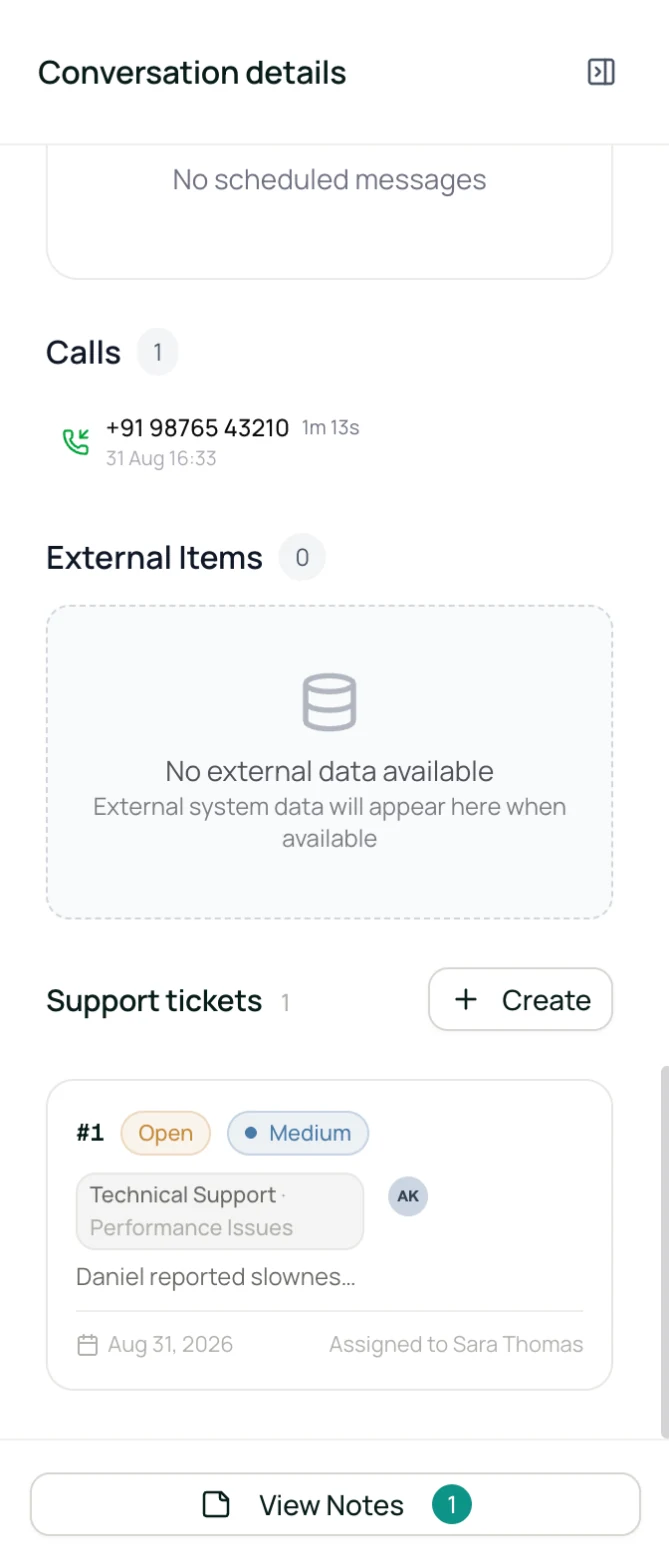
Step 3 — Click Create ticket
A dialog opens with fields: Issue (required), Sub-issue (optional), Priority (Low / Medium / High), Assignee, Remarks — and, when the channel's workflow defines them, a Details step for the workflow's custom fields (required ones must be filled in).
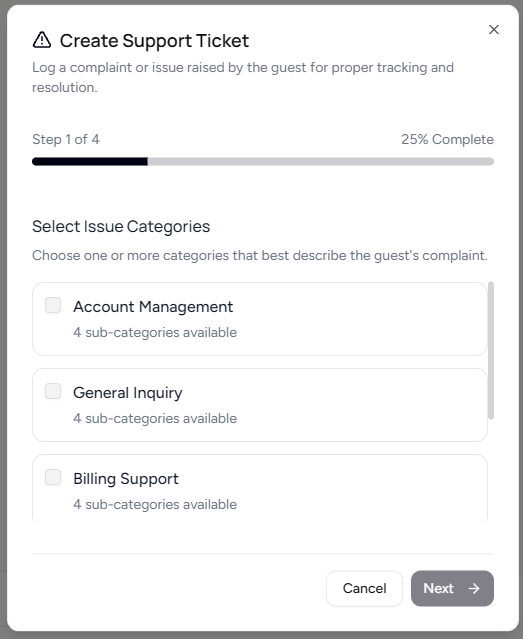
Step 4 — Fill and save
Pick a category, set priority, pick an assignee, write the first remark, and Save.
What you'll see next: the ticket appears in the Tickets section with status Open. The assignee gets an email notification.
Step 5 — Manage from the Tickets list
Sidebar → Tickets. The new ticket is in the list. Open it; change the status to In progress, add a remark, save.
Step 6 — Resolve it
When the issue is fixed, open the ticket and set status to Resolved. A status-change email is sent; the ticket stays in the list but drops off the "status = open" filter.
How it works
When you create a ticket, Lodgestory:
- Validates the issue and sub-issue against the channel's ticket workflow.
- Saves the ticket and links it to the chat.
- Emails the assignee (and any watchers) with the ticket details.
When you change status, priority, assignee, or remarks:
- Lodgestory records the change with a timestamp and the actor.
- Emails the relevant people (assignee and ticket creator) on status changes.
Everything is applied atomically — if the change fails validation, nothing changes.
Features in depth
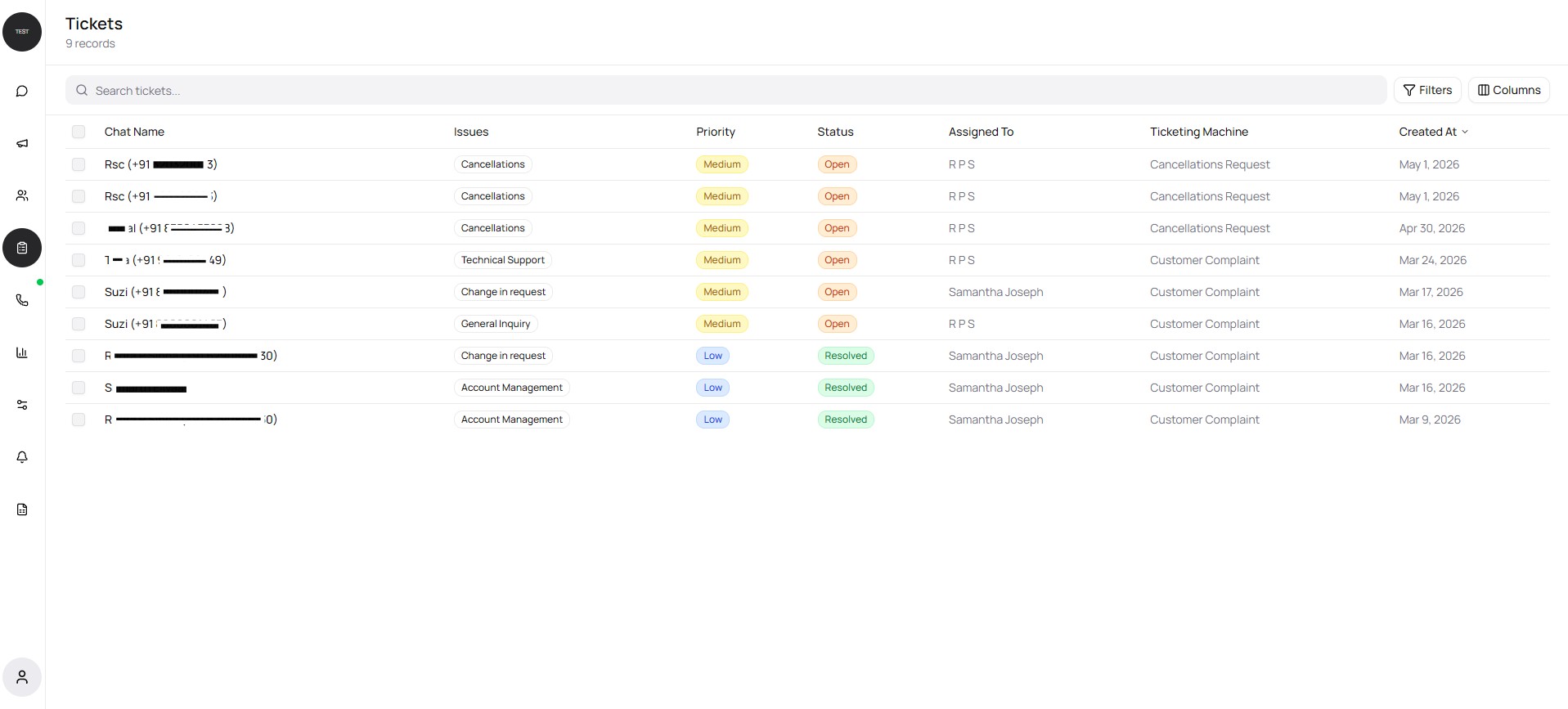
The Tickets list page
Where to find it: Sidebar → Tickets.
A table of tickets with quick chips (All / Open / Mine / Urgent / Resolved), filters, bulk-select, search, and pagination. Columns shown by default: ticket number (#42), customer (chat, call or standalone identity), issues, priority, status, assignee (with the routing pool when one picked the owner), workflow, created. Columns lets you add sub-issues, creator, remarks, attachments, updated date — and any captured detail as its own column, grouped by workflow (a Room No. column for the Maintenance workflow, for example). Column choices are remembered per browser.
Sort by clicking a column header (ticket number, priority, status, created / updated date) or pick a preset from the Sort dropdown — including Priority: urgent first (SOS → High → Medium → Low → No action) and Triage, a combined order that lists open tickets before resolved, most urgent first, newest first within the same priority.
Click any row to open the ticket detail.
Filters
Eight dimensions:
- Status — multi-select.
- Priority — multi-select (Low, Medium, High).
- Assignee — multi-select team members, plus Unassigned.
- Creator — multi-select.
- Channel — multi-select.
- Issue / sub-issue — cascading picker.
- Date range — created between two dates.
- Search term — free-text across remarks, guest name, phone, issue category and captured details (a room number, an invoice id); a bare number or "#42" matches the ticket number directly.
Bulk operations
Select two or more tickets in the list; the bulk action bar appears. Supported:
- Bulk assign — set the same assignee on all selected.
- Bulk status change — move all selected to the same status.
- Bulk priority change — set the same priority on all selected.
- Bulk delete — delete all selected.
Every bulk action is atomic — if one fails, none apply.
Ticket detail
Opens when you click a row — a wide dialog laid out in three columns that each scroll on their own, so a ticket with a long note thread needs no page scrolling:
- Summary — the customer (with Open chat / Open call), the issues, and the handling controls: assignee, priority and status are live selects that save the moment you change them.
- Captured details — the workflow's custom fields, editable in place with a single Save; tickets created before a field existed show it empty and can be completed here. Below it, the remarks (inline edit) and the attachments.
- Notes — the note thread on the ticket's chat (general / important / follow-up, @mentions, attachments). Standalone tickets have no chat and therefore no notes — use remarks.
Deleting the ticket is available from the header.
Creating a ticket from a chat
Where to find it: Home → open any chat → guest-details panel → Tickets section → Create ticket.
The category list is the channel's ticket workflow. If the channel has no workflow configured, the create flow prompts you to configure one before you can make a ticket on that channel. When the workflow defines details to capture, the wizard adds a Details step before the review.
Ticket Workflows (category configuration)
Where to find it: Settings → Ticket Workflows.
Per-channel list of issues and sub-issues, plus the details each workflow captures on every ticket. Managed by admins.
Roles and permissions
| Action | Account Owner | Admin | User |
|---|---|---|---|
| View all organisation tickets | ✓ | ✓ | ✓ |
| View tickets on chats the user can see | ✓ | ✓ | ✓ |
| Create a ticket | ✓ | ✓ | ✓ |
| Update a ticket (status, priority, remarks) | ✓ | ✓ | ✓ |
| Reassign a ticket | ✓ | ✓ | ✓ |
| Delete a ticket | ✓ | ✓ | ✓ |
| Bulk operations | ✓ | ✓ | ✓ |
| Configure the channel's ticket workflow | ✓ | ✓ | ✗ |
Cross-module workflows
Complaint logged → escalated → resolved → follow-up survey
A customer complains on WhatsApp. The agent opens the chat in Home, creates a ticket with High priority under Maintenance → HVAC, and assigns the maintenance team. The team lead gets an email. When the fix is verified, the team sets the ticket to Resolved; a status-change email goes to the original agent and the customer. A separate campaign sends a follow-up satisfaction survey via WhatsApp template.
Modules involved: Home → Tickets → Campaigns (satisfaction follow-up).
Bot-journey handoff → ticket opened on pickup
A bot journey's hand-off step transfers to a human team. When the agent opens the chat, they create a ticket for traceability. The ticket carries the full chat history via the linked chat — the agent doesn't re-type anything.
Modules involved: Bot Journeys → Home → Tickets.
Limits a user will run into
| Limit | Value |
|---|---|
| Pagination (API) | 100 tickets per page |
| Tickets per chat | No limit |
| Media attached per ticket | No limit |
| Ticket remark length | No enforced limit (long text may be truncated in list views) |
Errors & FAQ
| You see | Likely reason | What to do |
|---|---|---|
| "Issue is required" | No category selected at create time | Pick an issue from the category dropdown |
| "Invalid issue/sub-issue for this channel" | Category doesn't exist in the channel's ticket workflow | Pick a valid category, or have an admin add it to the workflow |
| "Ticket not found" | Wrong ID or the ticket was deleted | Refresh the list |
| "Ticket belongs to a different organisation" | Cross-organisation access attempt | Switch to the correct organisation |
| "Assignee must be a member of the organisation" | The assignee isn't on your team anymore | Pick a current team member |
| "Invalid status transition" | Status move not allowed in the workflow | Pick a valid target status |
| "Failed to create ticket" / "Failed to update ticket" | Network or validation | Read the error message, fix, and retry |
Frequently asked
Why can't I create a ticket on this chat?
The channel has no ticket workflow configured. Go to Settings → Ticket Workflows and create one for that channel.
Why don't I see the assignee's email on the ticket detail?
The detail shows the assignee's name and a link to Team Members for their profile. Email notifications still go out to them.
Can I set an SLA?
Not yet. Use priority plus a scheduled report on open tickets by age as a workaround.
Why did the ticket disappear when I deleted its chat?
Tickets are deleted along with their chat by design. If you need the ticket history, export via Reports before deleting.
Does editing the ticket workflow invalidate existing tickets?
No. Existing tickets keep their issue and sub-issue even if those values are later removed from the workflow.
Related modules & next steps
- Home (Unified Inbox) — where tickets are typically created from.
- Ticket Workflows — configure the per-channel category list.
- Bot Journeys — hand-offs that often become tickets.
- Campaigns — satisfaction follow-ups after resolution.
- Reports — export tickets as CSV.
- Team Members — manage the assignees on your team.
Updated 22 days ago