
Bookings
Lodgestory CRM › Bookings
Turn "when are you free?" into a confirmed slot on someone's calendar — booked by you, or by the customer themselves from a link you share.
TL;DR
- What it is — a scheduling surface inside the CRM where appointments, site visits, and blocked time live on a real calendar. Book on a customer's behalf, or share a public link and let them pick an open slot. Lodgestory auto-assigns an available team member, creates the calendar invite, and keeps everyone notified.
- Who it's for — any team that meets customers on a schedule: sales calls, property viewings, demos, onboarding sessions, site visits.
- Top outcome — a customer books a real slot in under a minute, the right team member is assigned automatically, and the meeting (with a video link or an address) lands on everyone's calendar — no back-and-forth.
At a glance
| Plan tiers | Included with Lodgestory CRM (all paid plans). |
| Who can use it | Every team member can book and manage their own calendar. Admins can view and manage the whole team's bookings. |
| Two ways to book | Internally (you book for a customer) or externally (the customer self-books from a public link). |
| Meeting types | Online meeting (optionally with a Google Meet link) or in-person visit (with an address). |
| Integrations | Google Calendar (invites + Google Meet), your email channel (confirmations + reminders), WhatsApp (reminders), Tickets, Contacts, Dispositions. |
| Top limits | A public link shows availability up to the window you set (default 30 days ahead). One assigned host per booking. |
| API | The public booking link is a shareable URL — no developer setup needed. |
How to find it
Direct URL: https://lodgestory.com/crm/bookings
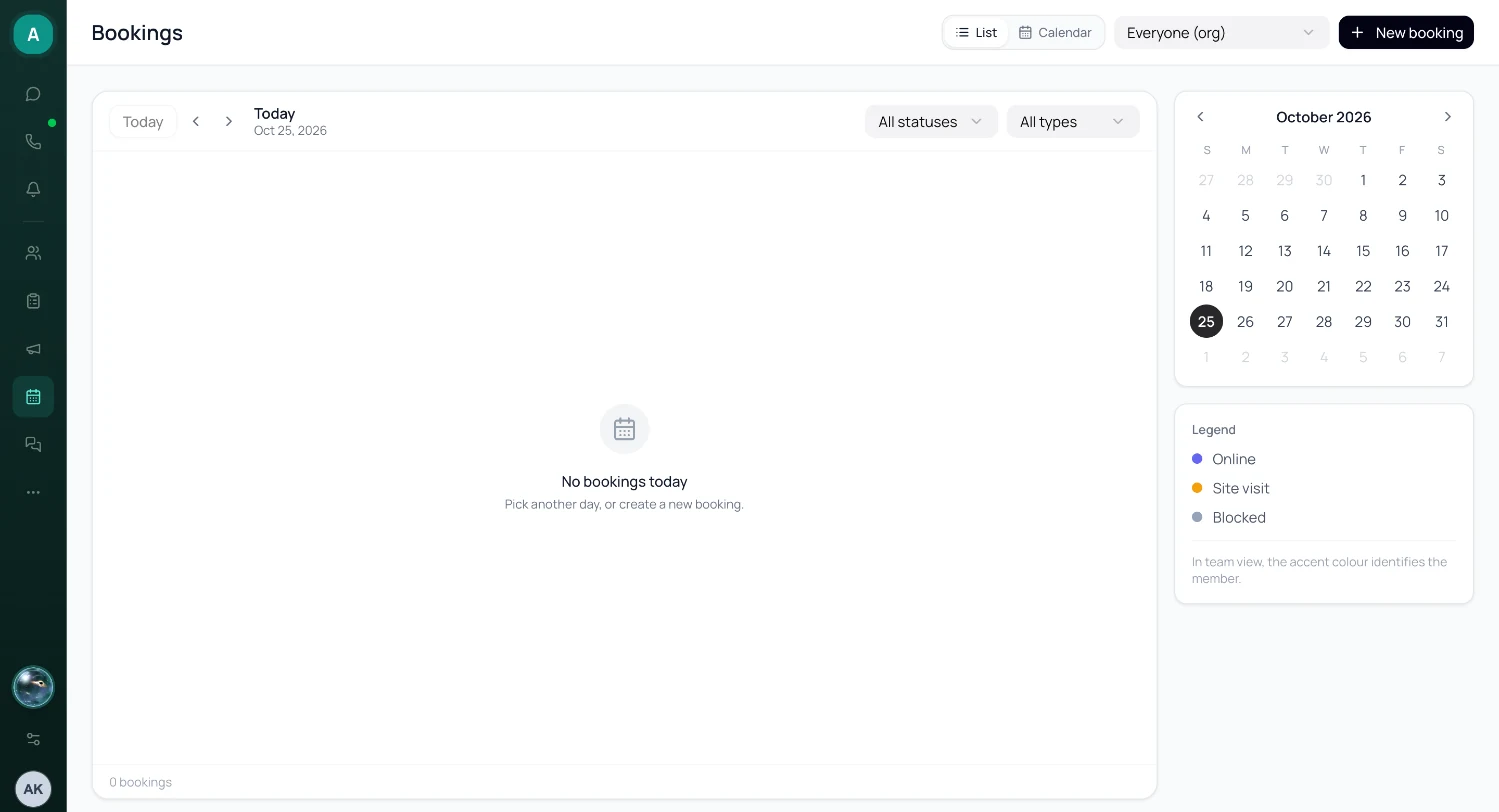
In the app: click Bookings in the left sidebar. The page opens on today's bookings.
To accept public bookings, you first set up a bookable calendar in Settings → Booking availability — see Booking Availability.
What is Bookings?
The problem it solves
Scheduling a call or a visit usually means a chain of messages — "are you free Tuesday?", "afternoon works", "how about 3?", "actually 4" — and even then it lives in someone's head or a personal calendar nobody else can see. Double-bookings happen. No-shows aren't tracked. The person who booked it is the only one who knows it exists.
Bookings replaces that with a single source of truth. Every appointment, site visit, and blocked-off hour sits on one calendar the whole team can see. Customers can self-serve from a link — pick an open time, and Lodgestory assigns whoever's available and free. The meeting shows up on calendars with a video link or an address, reminders go out on their own, and the outcome is recorded against the customer's record.
What you get
- Two views, one switch. A clean List of the day's bookings, or a full Calendar (week / day / month) — toggle in the header.
- Self-service booking links. Share a link; customers pick an open slot. No login, no app.
- Automatic assignment. Team links rotate fairly across whoever is available and not already busy.
- Real calendar invites. Connect Google Calendar once and every booking creates an event — with a Google Meet link for online meetings, or the address for in-person visits — and invites the customer and the assigned team member.
- Online or in-person. A booking can be a video meeting or a site visit; field staff can punch in / punch out on a visit to record start and end.
- Reminders that send themselves. Configure WhatsApp or email reminders once; Lodgestory sends them before each booking.
- Customer self-management. The confirmation email carries a private link where the customer can reschedule or cancel without contacting you.
- Outcomes and follow-up. Mark a booking completed or no-show, record a disposition, or raise a ticket — all from the booking.
How it's different
- It's part of the CRM, not a bolt-on. A booking links to the customer's contact record, their chat history, their tickets, and their disposition history — not a separate scheduling silo.
- Team links auto-assign and auto-block. Other tools make the customer pick a person; here the customer picks a time, and Lodgestory picks the free person and blocks their calendar so they can't be double-booked.
- Online and offline in one place. Video meetings and physical site visits live on the same calendar, with punch-in/out for field work.
Customer scenarios
- Prospect on WhatsApp wants a property viewing. You drop your booking link in the chat. They pick Saturday 11 AM, enter the address, and an available agent is assigned with the visit on their calendar.
- Demo request from the website. The lead self-books a 30-minute online slot; Lodgestory creates a Google Meet link and emails both sides the invite.
- A booked customer needs to move the time. They open the manage link from their confirmation email, pick a new slot, and the calendar updates for everyone — no message to your team.
- Site visit completed. The field rep punches in on arrival and out on leaving; the booking is marked completed with the duration recorded, and a follow-up ticket is raised from the same screen.
How it fits with the rest of Lodgestory
Bookings sits next to Contacts (every booking attaches to a contact), Tickets (raise a ticket from a visit), Dispositions (record an outcome), and Reports (export bookings to a spreadsheet). Availability, reminders, and the public link are configured in Booking Availability.
Core concepts
- Booking — a scheduled appointment, site visit, or block of time, with a start, an end, an assigned host, and a status.
- Bookable calendar — the availability you publish: your working hours, slot length, and what people can book. Personal (just you) or team (a pool of members). Set up in Booking Availability.
- Host — the team member assigned to a booking. For team links, chosen automatically.
- Slot — an open time someone can book, generated from your working hours and slot length, minus anything already booked.
- Online meeting vs in-person visit — a video meeting (optionally with a Google Meet link) or a physical visit (with an address and optional punch in/out).
- Block — time you mark as unavailable so it can't be booked. No customer, no invite.
- Status — Scheduled, Confirmed, Completed, Cancelled, or No-show.
- Guests — extra people added to a booking's invite beyond the primary customer.
- Manage link — the private link in a customer's confirmation email to reschedule or cancel.
- Disposition — a recorded outcome of the booking (configurable), attached to the customer.
Quick Start — book a customer in 60 seconds
Step 1 — Open Bookings
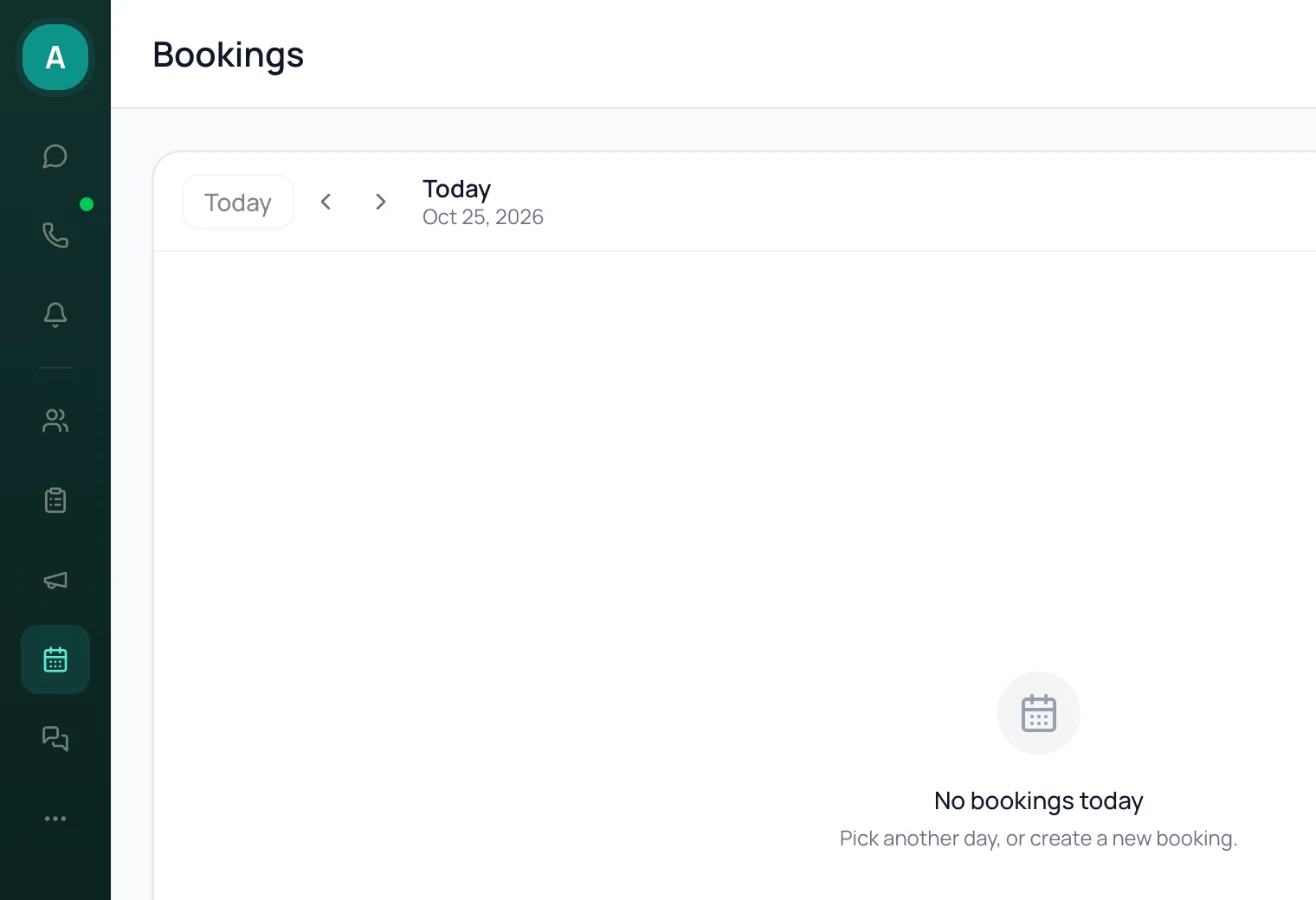
Click Bookings in the sidebar.
Step 2 — Click New booking
Top-right of the page.
Step 3 — Pick a type and time
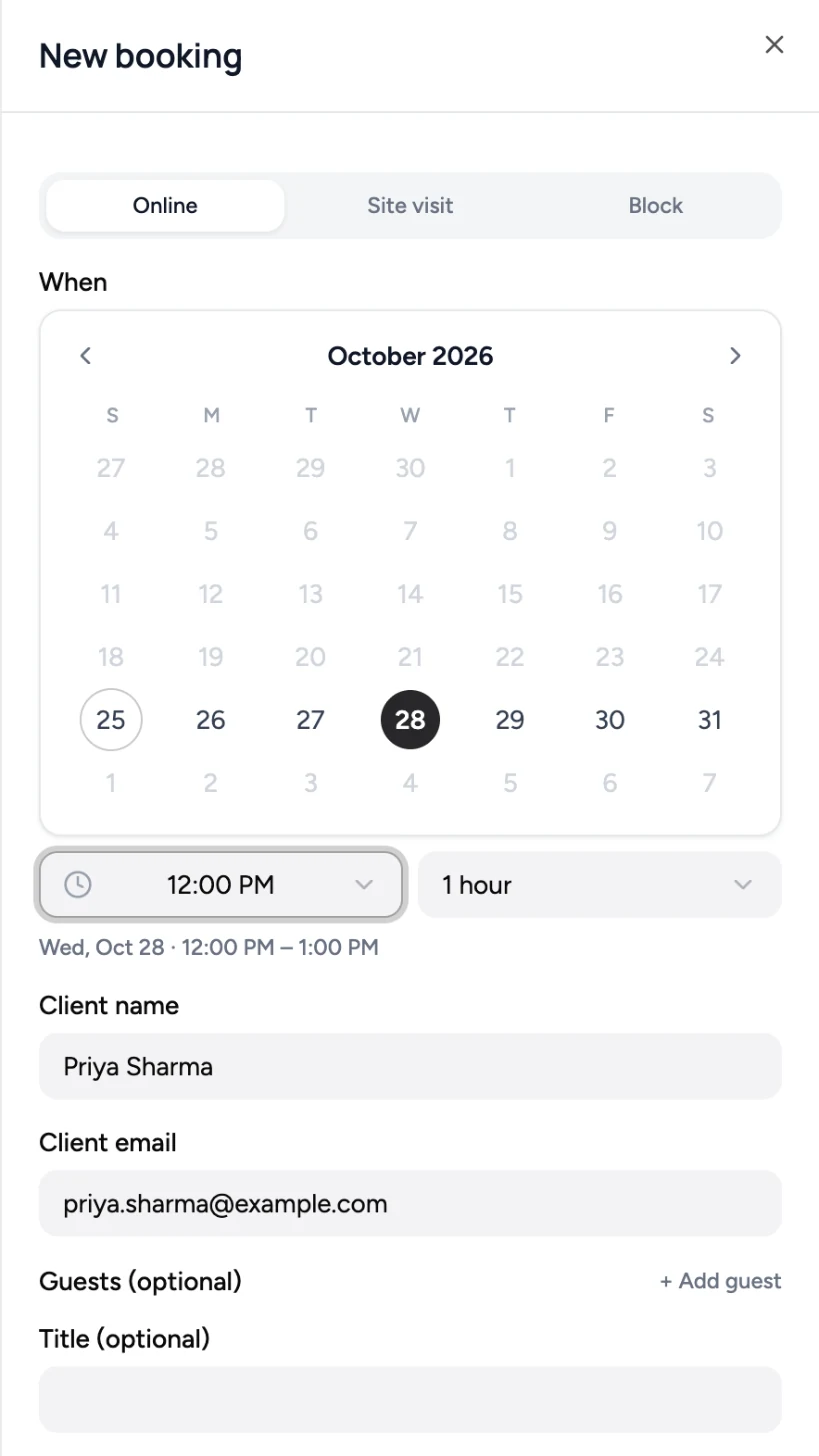
Choose Online, Site visit, or Block. Pick the date on the mini-calendar, then a start time and duration.
Step 4 — Add the customer
Enter the customer's name and email (and phone if you have it). Add any extra guests. For a site visit, enter the address; for an online meeting, leave Add Google Meet on to attach a video link.
Step 5 — Create
Click Create booking. The invite goes out, the slot is blocked, and the booking appears on the day's list.
Step 6 — Share a self-service link instead (optional)
Set up a bookable calendar in Booking Availability, turn the link public, and share the URL. Customers book themselves and an available member is assigned automatically.
How it works
When someone books — whether you or the customer — Lodgestory:
- Confirms the chosen time is genuinely open (within your hours, not already taken, inside your notice and advance windows).
- For a team link, assigns an available member, rotating fairly so the same person isn't always picked, and only ever picks someone who isn't already busy at that time.
- Blocks that member's calendar so they can't be double-booked — on this calendar or any other.
- Creates the calendar event (with a Google Meet link for online meetings, or the address for visits) and invites the customer and the host.
- Sends the confirmation email with a private manage link, and schedules any reminders you've configured.
Everything after that — reminders, the manage link, marking past online meetings as completed — happens on its own.
flowchart LR
  A[Customer picks an open time] --> B[Available host assigned]
  B --> C[Host's calendar blocked]
  C --> D[Calendar invite + video link or address]
  D --> E[Confirmation email + manage link]
  E --> F[Reminders sent before the meeting]
Features in depth
List view
The default view shows one day at a time. Use Today, the arrows, or the mini-calendar on the right to move between days — past or future. Each entry shows the time, duration, customer, type, the assigned host (in team views), and a status badge. Click an entry to open the booking.
Calendar view
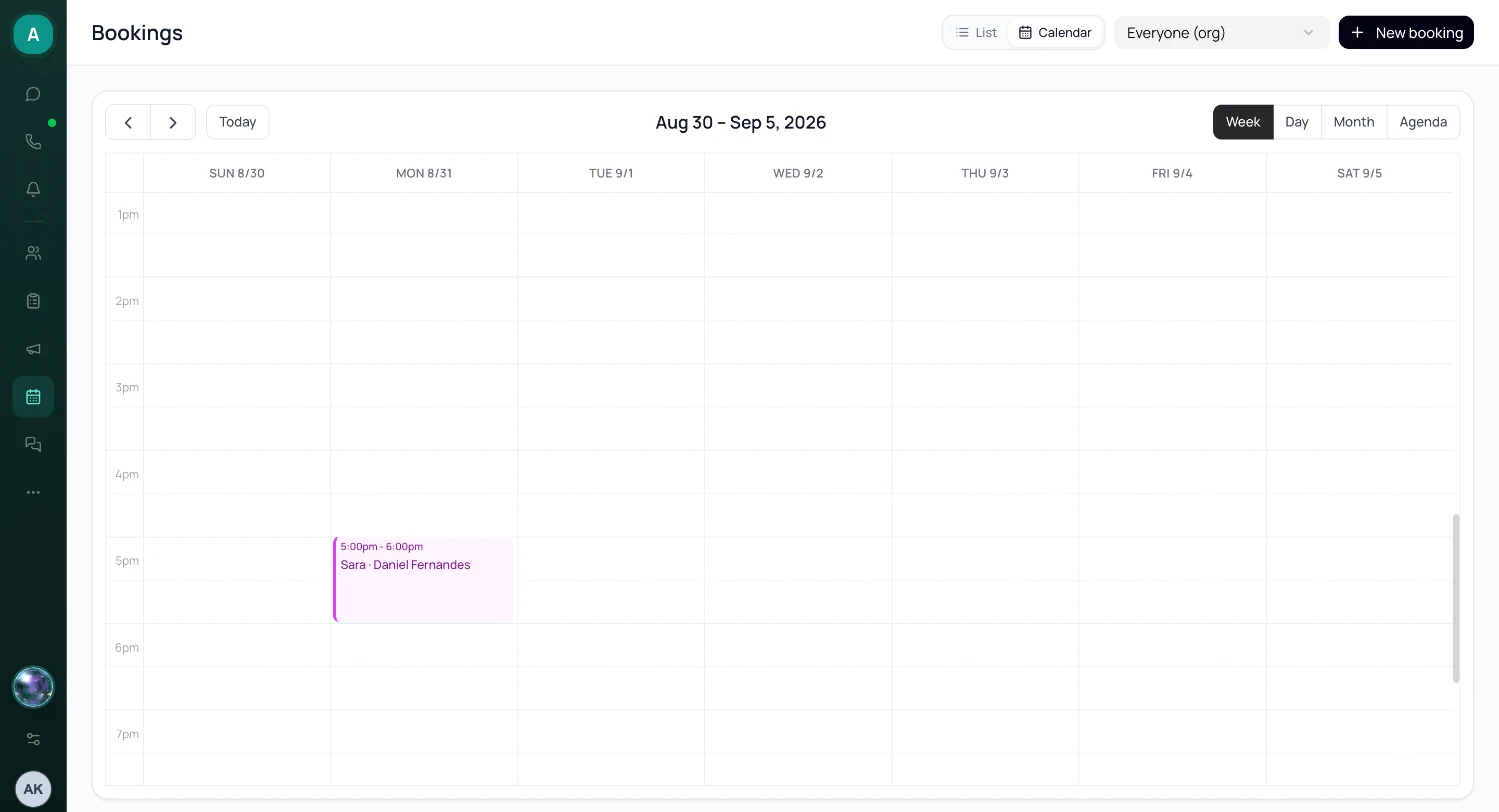
Switch to Calendar in the header for a full week / day / month grid with the bookings laid out by time. Drag an event to reschedule it. Click an empty slot to start a new booking. Click an event to open it.
Filters and the day count
Filter the list by status (Scheduled, Confirmed, Completed, Cancelled, No-show) and type (Online, Site visit, Blocked). A count of the day's bookings sits at the bottom.
Whose calendar you're viewing
Admins get a picker to switch between My calendar, Everyone, a specific team, or an individual member. Team views colour each person's bookings so you can scan by who.
The booking detail
Opening a booking shows the full detail and the actions available for it:
- Reschedule — change the time; the calendar invite updates and everyone is notified.
- Reassign (admins) — move it to a different team member; Lodgestory checks they're free first.
- Mark completed / Mark no-show — record the outcome.
- Cancel — cancels the booking, removes the calendar event, and notifies the customer.
- Create ticket — raise a support ticket from the booking.
- Disposition — record a configurable outcome against the customer.
Site visits and punch in / out
A site visit can be punched in on arrival and out on leaving. The booking records the start, end, and duration, and is marked completed on punch-out.
Multiple guests
Beyond the primary customer, you can add extra guests to a booking; they're included on the calendar invite.
The public booking link (what your customer sees)
When you publish a bookable calendar, your customers get a clean, branded page:
- Your business name, logo, and accent colour.
- The meeting length and whether it's online or in-person.
- A choice of online or in-person when you offer both.
- Open days and times, shown in the customer's own timezone.
- A short form for their details (and an address for visits).
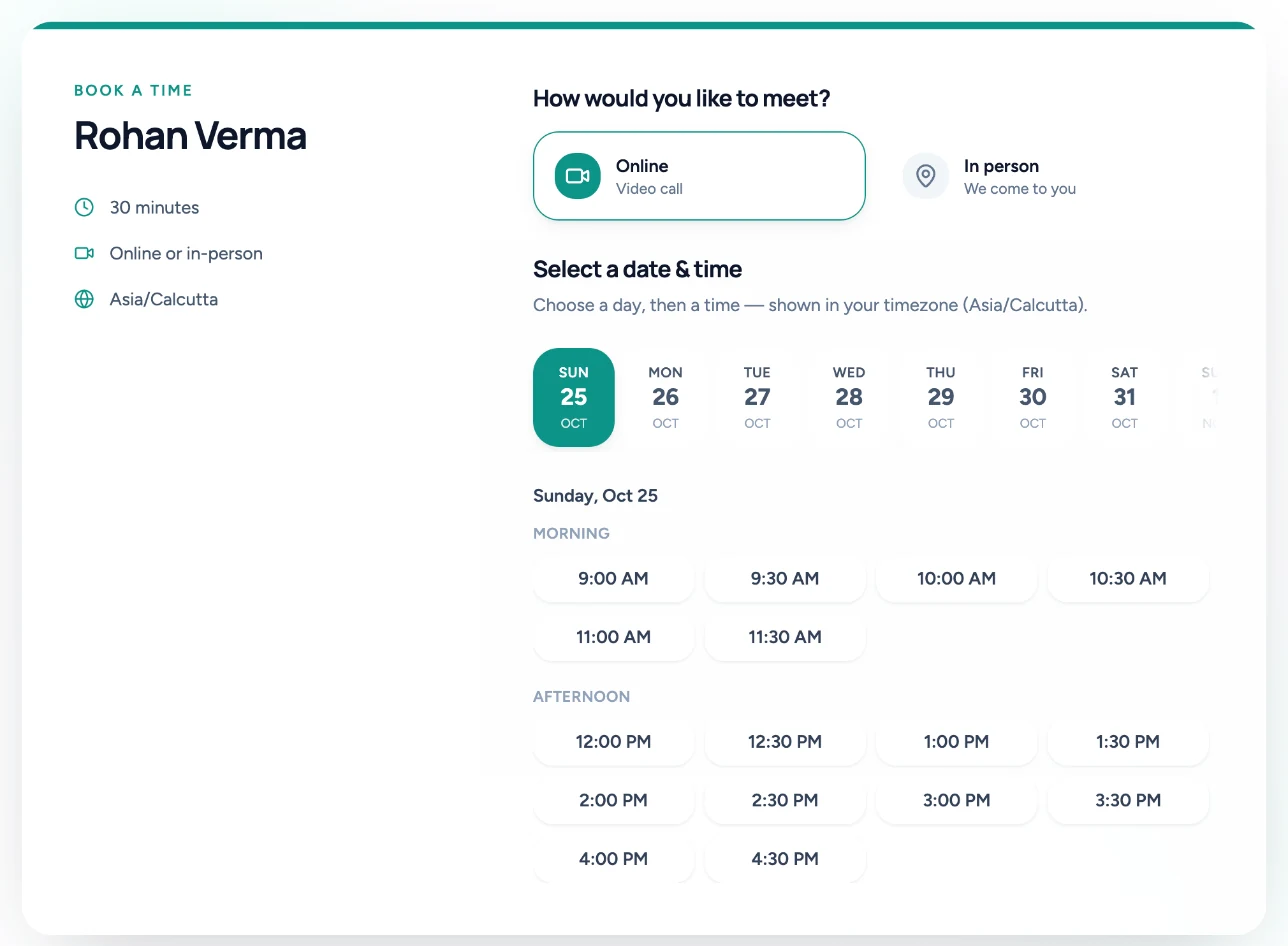
On submit they see a confirmation, and Lodgestory assigns an available host behind the scenes.
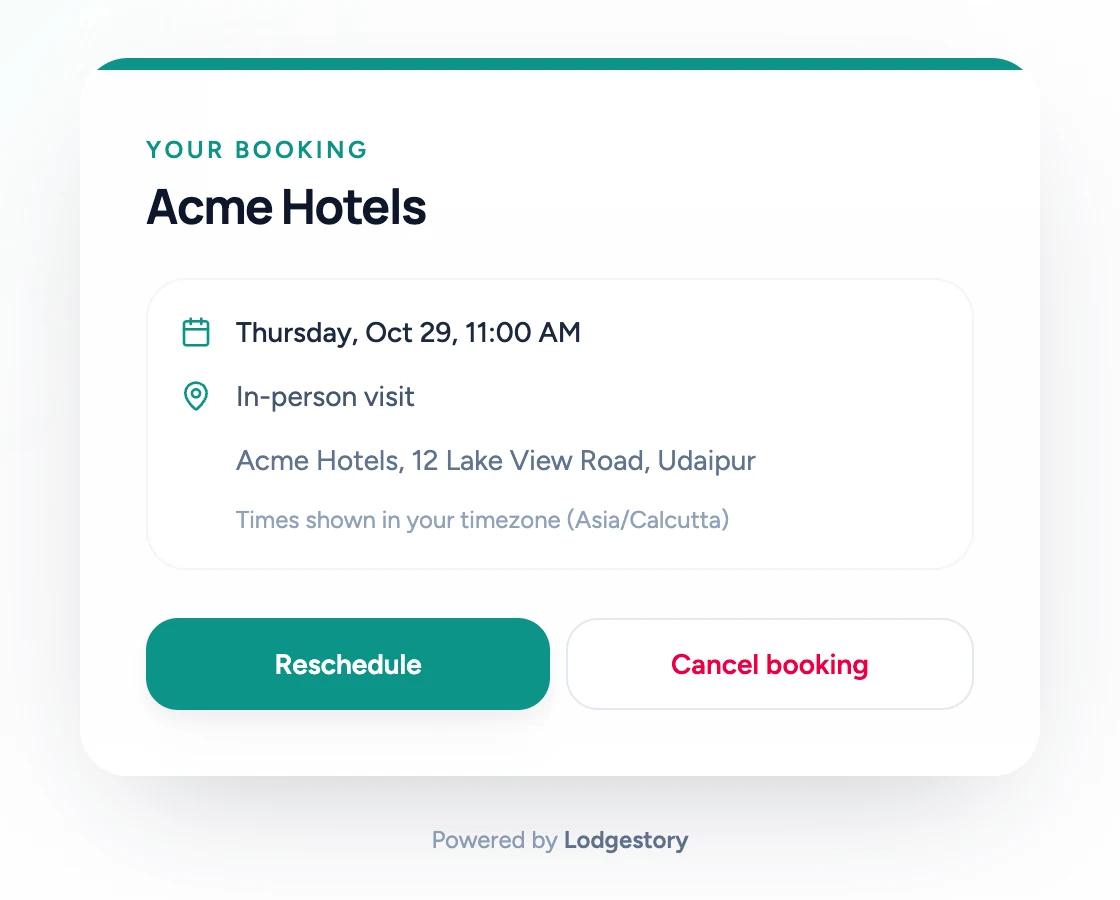
Customer self-management (reschedule / cancel)
Every confirmation email carries a private manage link. From it the customer can reschedule (to another open time with the same host) or cancel — no need to message your team. Changes flow straight back to your calendar and notify the assigned member.
Bookings on the contact record
Open any contact and you'll see a Bookings section listing their past and upcoming appointments — so anyone helping that customer has the full picture.
Bookings on a lead
A booking can belong to a lead, and then moves it along by the rules on its Lead Track (e.g. Visit booked → Visit done, with a follow-up call scheduled).
- Book from the lead: the lead sheet's Bookings card → Book, or Book a visit or meeting on the dialer's outcome form. The customer is filled in and can't be changed.
- Send the lead a link: Bookings card → Copy link. The customer picks a slot on your public page and the booking lands on that lead. Links work for 30 days and only on the booking page they were made for.
- A customer's own booking from your normal public link is linked to their most recent open lead, if they have one. If they have none and a Lead Track has Create a lead from a public booking on for that page, a new lead is created there and the booking is linked to it; otherwise the booking stays unlinked.
- A linked booking shows Lead → Open lead in its detail, and the BOOKING export has a Lead ID column.
Exporting bookings
From Reports, choose Booking Export to download a spreadsheet of bookings — filter by date range, type, status, and team member. Useful for ops reviews and payroll on field visits.
Roles and permissions
| Role | Can do |
|---|---|
| Account Owner / Admin | Everything: view and manage the whole team's bookings, reassign, set up team calendars, see every member's day. |
| Team member | Book and manage their own calendar and bookings, book on a customer's behalf, punch in/out, record outcomes. View any contact's bookings. |
| Customer (no login) | Self-book from a public link; reschedule or cancel their own booking from the manage link. |
Connections
Chat → booking link → confirmed slot
A guest asks about availability in any channel. You paste your booking link; they self-book; the booking attaches to their contact and the whole chat-to-calendar trail stays in one place.
Site visit → ticket → follow-up
Field rep completes a visit, punches out, and raises a ticket for anything needing follow-up — pre-filled from the booking.
Booking → disposition → reporting
Record the outcome as a disposition; it's attached to the contact and rolls into your booking exports and analytics.
Reminders across channels
Configure WhatsApp and email reminders in Booking Availability; they send before each booking without anyone lifting a finger.
Limits a user will run into
- One host per booking. A booking is assigned to a single team member.
- Availability window. A public link only shows slots up to the advance window you set (default 30 days).
- Reschedule keeps the same host. When a customer reschedules from their manage link, they pick from the times their assigned host is free — not a different person.
- Past times can't be booked. Slots in the past aren't offered.
Errors & FAQ
"That time is no longer available." Someone booked that slot a moment before you did. Pick another open time.
The booking saved but no calendar invite arrived. A Google account needs to be connected for invites and Google Meet links — see Booking Availability. Without it, bookings are still saved; they just don't create calendar events.
A customer cancelled but it's still on my Google Calendar. Cancellations remove the event automatically once Google Calendar is connected and syncing. If you cancelled before the event finished syncing, it clears on its own shortly after.
Frequently asked
- Can a customer book without an account? Yes — the public link needs no login.
- Can two calendars book the same person at the same time? No. Lodgestory blocks an assigned member across every calendar, so they can't be double-booked.
- Do online meetings get a video link? Yes, if you keep Add Google Meet on and a Google account is connected.
- What happens to a past meeting nobody closed? Past online meetings are marked Completed automatically; you can still mark a meeting No-show.
Related modules & next steps
- Booking Availability — set up your bookable calendar, hours, reminders, and public link.
- Contacts — where each customer's bookings appear.
- Tickets — raise follow-ups from a visit.
- Reports — export bookings to a spreadsheet.
Updated 3 days ago